How to Remove the AI Label from Instagram Photos (2027 Guide)
Maya is a wedding photographer. Last spring she cleaned up a portrait: a stranger had wandered into the background, so she removed him with a generative-fill tool. Nothing else changed. She posted it that evening, and by morning a client had messaged her: "Is this photo AI?" Instagram had attached an AI info label to it.
She hadn't made the picture with AI. She had used AI to delete one person from the background, and the file remembered.
(Maya is an illustrative example, not a real customer.)
This happens to a lot of photographers, and the cause is almost always the same: metadata. Below I'll explain what Instagram is reading, how to remove it, what I saw when I tested it on our own account, and when you shouldn't remove the label at all.
The Short Answer
- Why it appears: Instagram reads hidden metadata in your file. If that metadata says an AI tool created or edited the image, Instagram adds an AI label. Editing apps write it automatically, even when the AI part was small, like removing one object.
- How to remove the trigger: Strip the metadata before you upload. TryMetaClear does it for free, and the file is deleted from our server as soon as it's cleaned.
- What it can't guarantee: Some AI images also carry an invisible watermark in the pixels (Google's SynthID, for example), and platforms can use other signals too. Removing metadata doesn't touch any of that.
Why Does Instagram Show an "AI Info" Label?
Meta doesn't guess which images are AI. It reads what the files say about themselves.
In February 2024, Meta announced that it would label AI images on Facebook, Instagram and Threads by detecting industry-standard markers: the C2PA and IPTC metadata that tools from Google, OpenAI, Microsoft, Adobe, Midjourney and Shutterstock write into their images.
The first version of the label said "Made with AI". Photographers objected almost immediately, because real photos with small edits were getting it. In July 2024 Meta renamed it "AI info". Then in September 2024 it moved the label into the post's menu for images that were only edited with AI, and kept it visible under the username for images detected as fully AI-generated.
So the label you see depends on what your file claims, and Meta has changed the wording more than once. In my own test (below), it appeared under the account name as "AI content".
Instagram reads two kinds of metadata.
C2PA Content Credentials
C2PA (the Coalition for Content Provenance and Authenticity) is an open standard backed by Adobe, Microsoft, Google, Sony, Leica and others. A C2PA manifest is a signed record stored inside the file. It says which app made or edited the image and what it did, including whether AI was involved. Adobe Firefly, Photoshop's Generative Fill and ChatGPT's image generator all write one. Because the record is signed, nobody can quietly change it; you can only keep it or remove it. Learn more about C2PA Content Credentials.
IPTC and XMP fields
IPTC and XMP are older, plainer metadata formats that sit alongside EXIF. A few of their fields matter here:
DigitalSourceTypesays how the image was made. The valuetrainedAlgorithmicMediameans "made by AI", andcompositeWithTrainedAlgorithmicMediameans a real image combined with AI elements.AISystemUsed(IPTC "AI System Used") names the generator, such as Adobe Firefly, DALL-E 3, Midjourney or Stable Diffusion.SoftwareandHistoryrecord the app that saved the file and, sometimes, a log of edit steps such as Generative Fill.
Phones do this too. AI edits made with tools like Google's Magic Eraser or Samsung's Galaxy AI can leave the same kind of marker.
The important part: the label reacts to what the file says, not to what the photo looks like. A tag that says "AI touched this" is enough, even if 99% of the picture came straight off your camera.

Step 1: See What Your Photo Is Carrying
Before you change anything, look at what's in the file.
- Open the TryMetaClear AI metadata remover.
- Drop your photo into the upload box. It goes over an encrypted connection to be scanned and is deleted from our server afterwards.
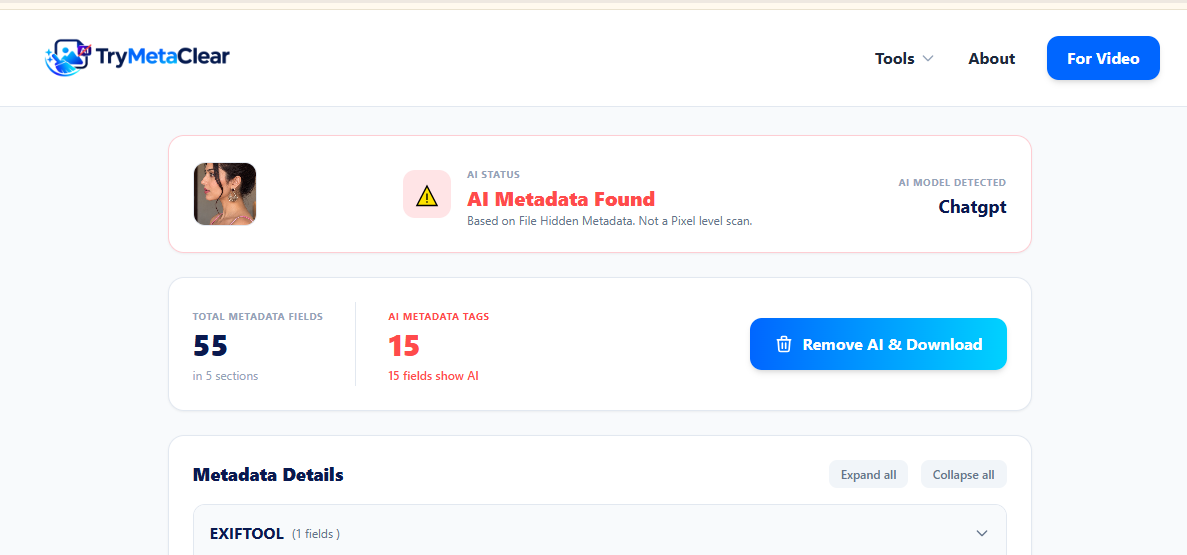
- Read the results. The AI Status card tells you whether AI metadata was found, and Metadata Details lists every field by section.
What to look for: a C2PA or JUMBF section, DigitalSourceType set to trainedAlgorithmicMedia, an AISystemUsed field, or prompt text from a generator. Any one of those is enough to set off the label.
Step 2: Clean the Metadata
On the same results screen, click "Remove AI & Download". A progress bar shows the file being cleaned, and when it's done you'll see "AI label cleaned and downloaded".
TryMetaClear accepts JPG/JPEG, PNG, WebP and HEIC files up to 100 MB.
Step 3: Download and Post the Clean Copy
The cleaned file saves automatically, named cleared_ followed by your original file name. Upload that copy to Instagram the way you normally would.
Keep your original somewhere safe. The cleaned version has also lost its camera details and edit history, and you may want those later.
Image quality doesn't change. Only the metadata is removed; the pixels are copied exactly as they are, so resolution, colour and sharpness stay the same.
What Happened When I Tested It
I wanted to see the whole chain for myself, so I ran it on our own Instagram account, @trymetaclear.
- I posted a portrait. Instagram showed "AI content" under the account name straight away (the first screenshot above).
- I ran the same file through TryMetaClear. The scan found 55 metadata fields across five sections. Fifteen of them pointed to AI, all inside the C2PA (JUMBF) block, and the detected generator was ChatGPT.
- I cleaned it, downloaded the copy and posted it again. This time there was no label.
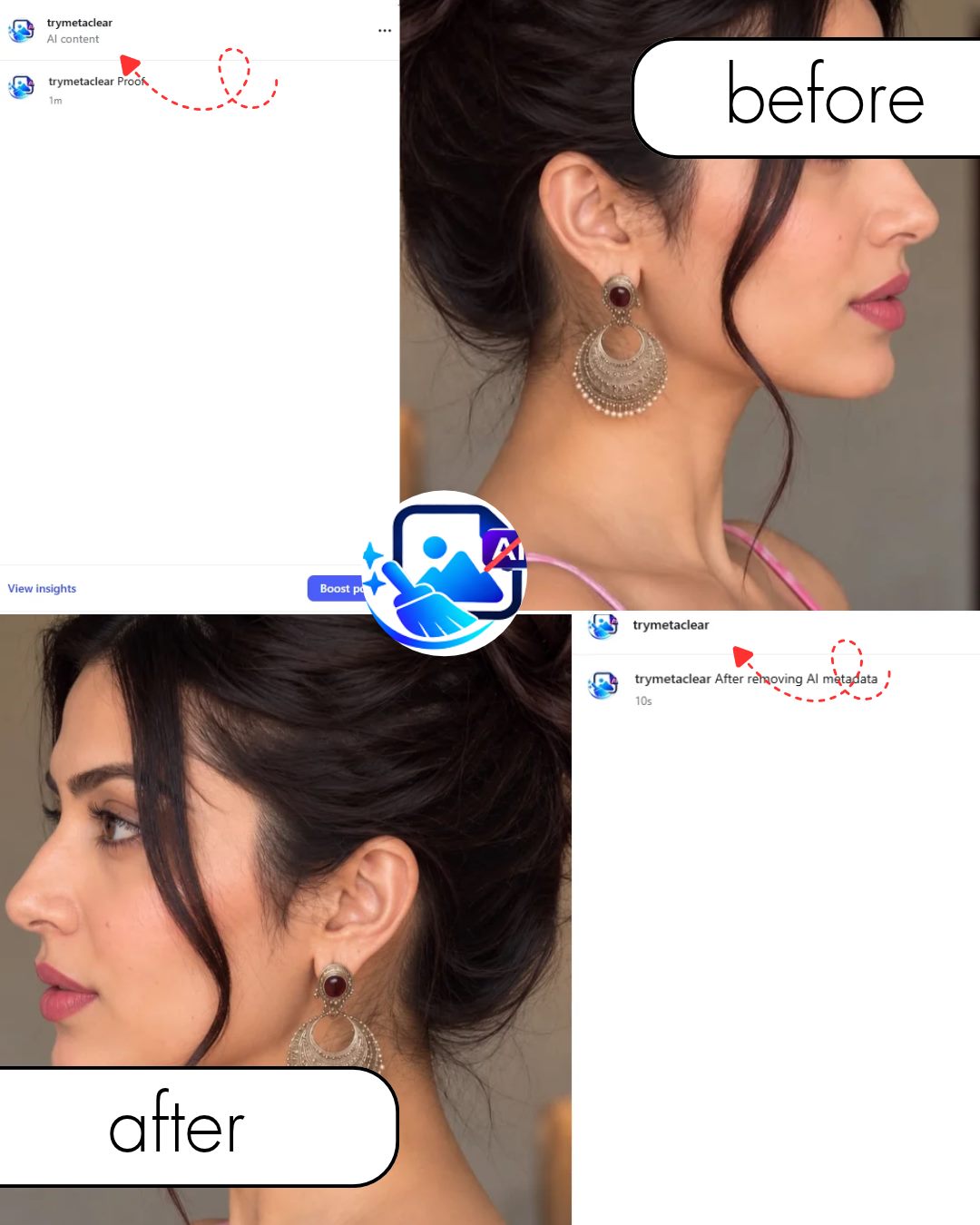
To be upfront about it: the test portrait was generated with ChatGPT. I used it because it triggers the label every time, which makes the cause easy to see. For a fully AI-generated image like this one, Meta expects you to disclose it, so I wouldn't strip it for a real post (more on that below). The mechanics are identical for a real photo that picked up a tag from a single AI edit, and that's the case this guide is for.
What If the Label Still Appears?
Metadata is the most common trigger, but it isn't the only one. Meta itself said in its 2024 announcement that it can't detect all AI content from markers and that people can strip them, so it looks for other signals as well. If a cleaned image is still labelled, it's usually one of these. (For other ways to strip metadata, such as ExifTool or screenshots, see our comparison of four methods to remove AI metadata.)
1. An invisible watermark in the pixels
Some generators hide a signal in the image itself. Google's SynthID is the best-known example: it shifts pixel values in a pattern people can't see but software can detect. It isn't metadata, so no metadata tool can remove it without changing the picture.
2. Detection from the image itself
Platforms can also run classifiers that look at the picture rather than the file, checking for patterns that generative models tend to leave behind. Cleaning metadata has no effect on those.
3. The label is on an old post
Cleaning a file only helps the next upload. Posts that are already live keep their label. To get rid of it, you'd have to delete the post and upload the cleaned copy as a new one.
When You Shouldn't Remove the AI Label
Removing a false label from a real photo is fair. Hiding the fact that an image was made by AI is something else.
- Platform rules: Meta requires people to disclose realistic AI-generated video and audio and says it may apply penalties if they don't. For images, it gives you a way to add the label yourself.
- Your audience: if an image is entirely or mostly generated, leaving the label up is the honest choice, and people trust creators who are open about it.
- A simple rule: clean the metadata when AI only helped you edit a real photo. Keep the label when AI made the picture.
Frequently Asked Questions
Q1: Why did my real photo get flagged with an AI label on Instagram?
Because the file said AI was involved. Photoshop, Lightroom and many phone gallery apps write a C2PA or IPTC tag when you use an AI feature such as generative fill, object removal or AI background removal. Instagram reads that tag when you upload and labels the post, even when almost all of the photo is a real camera capture.
Q2: Will stripping metadata reduce my photo's visual quality?
No. TryMetaClear removes EXIF, IPTC, XMP and C2PA metadata without re-encoding the image, so resolution, colour and sharpness stay exactly the same.
Q3: Is my photo uploaded or stored on your servers?
Your photo is sent over an encrypted connection to our server, saved briefly as a temporary file while it's cleaned, and deleted straight afterwards. We don't keep it, share it or use it to train AI models. The details are in our privacy policy.
Q4: What can an AI metadata remover NOT remove?
Anything in the pixels. That includes invisible watermarks such as Google's SynthID and anything a visual AI detector picks up from the image itself. It also can't change labels on posts that are already published.
Q5: What image file formats are supported?
JPG/JPEG, PNG, WebP and HEIC, up to 100 MB per file.
Before You Post Your Next Edit
Maya didn't need to explain her photo to anyone. She needed to know that her editing app had left a note inside the file, and that Instagram reads it. Check your files before you post, clean the ones where AI only helped with an edit, and leave the label on the ones AI actually made.
Posting Reels instead? The same applies to video: use the video AI metadata remover for MP4 and MOV files.
Ready to clean your photos before posting?
Try MetaClear's Free AI Metadata RemoverStrip hidden EXIF and C2PA tags in seconds—100% free, private, and nothing is kept.